This is a late post. The ASEE Annual 2009 Exposition in Austin was excellent. It is always good to see what other library professionals are implementing in their own organizations. I sort of see it as a revitalizing experience.
I think my presentation went well. If you want to check out the paper you can either contact me or here is the citation:
Wilson, E.M. (2009) Academic Library Internet Information Provision Model: Using Toolbars and Web 2.0 Applications to Augment Subject Reference. Proceedings of the 2009 American Society for Engineering Annual Conference & Exposition, Austin, TX. ASEE, Washington. Paper 471.
Just a little addenda if you are working on your own research toolbars: Like I emphasize in the paper using these types of tools to provide information requires constant updating. The engineering toolbar is now in version 1.0.9. It had to be updated to be compatible with the new Mozilla Firefox 3.5. It was a minor change but still a maintenance task.
I now have a Acer Aspire One 8.9" netbook. That little beauty was amazing in extending what I can do on the road and in the work that I do here on campus. I have yet to install the full development suite I use for maintaining the toolbar on the netbook.
Showing posts with label firefox. Show all posts
Showing posts with label firefox. Show all posts
Thursday, July 2, 2009

Wednesday, July 16, 2008
OU Engineering Toolbar now compatible with Firefox 3.0 and auto-updates
I have finally had time to settle down and setup the OU Engineering Toolbar so it auto-updates. In effect everything you would need to know about fixing the versioning is in this article from Mozilla's Development Center.
The way that you setup automatic updating is by hosting an update.rdf file in a directory the format of which can be found in this web-page. It also requires you to use secure http (https). If you are working with this just check with your systems administrator to see if hosted files use this automatically.
I was expecting this process to take a lot longer time-wise to work it out but it only took about two days to get everything sorted. Now I am going to go down to the Russ College of Engineering and see about getting the toolbar hosted in the computer labs there!
The way that you setup automatic updating is by hosting an update.rdf file in a directory the format of which can be found in this web-page. It also requires you to use secure http (https). If you are working with this just check with your systems administrator to see if hosted files use this automatically.
I was expecting this process to take a lot longer time-wise to work it out but it only took about two days to get everything sorted. Now I am going to go down to the Russ College of Engineering and see about getting the toolbar hosted in the computer labs there!
Thursday, January 31, 2008
Bug Scrunches Toolbar! Compatibility ...
First a note about compatibility; I have a friend who tried to run the Engineering Toolbar in the beta version of Firefox and they were unable to do so. I'll have to look into why this is the case. Now for the fun part:
What happened to my toolbar??!?
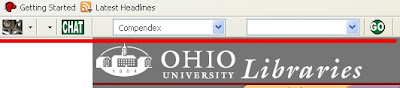
I initially ran into this problem the first time when I was working on getting a resizing gripper to change the size of the toolbar.
Then I also had a student report this error which was even worse than the first one!

The sequence to recreate the problem that I first found is to do the following:
Click View -> Toolbars -> Customize
Then click "Restore Default Set"
I mention this so you will know that there is a bug in Firefox that has yet to be fixed and what specific actions create the bug. You do not need to repeat the steps but if you do I have instructions on how to fix it.
So how do we fix this? A word of warning this process is destructive if you have customized your toolbar. As such you may want to take a screenshot of the changes that you have made so you can re-implement your changes.
Here is how you fix the error:
1. Exit out of Firefox.
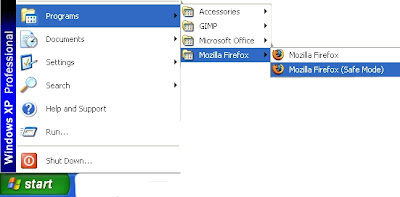
2. Click on the start menu
3. Select Mozilla Firefox (Safe Mode)
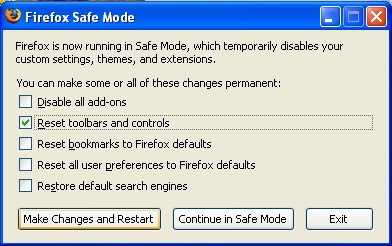
4. Click on the option box for "Reset Toolbars and Controls".
5. Click "Make Changes and Restart".
That should fix the problem. :)
-------------------------------------------------------------------------------------
Special Instructions for Macintosh Users:
In order to open Firefox in Safe Mode, go to the Utilities menu and launch Terminal. Then type the following command at the Terminal prompt:
/Applications/Firefox.app/Contents/MacOS/firefox -safe-mode
Then, a new Safe Mode window will pop up; follow instructions as for Windows (above).
What happened to my toolbar??!?

I initially ran into this problem the first time when I was working on getting a resizing gripper to change the size of the toolbar.
Then I also had a student report this error which was even worse than the first one!

The sequence to recreate the problem that I first found is to do the following:
Click View -> Toolbars -> Customize
Then click "Restore Default Set"
I mention this so you will know that there is a bug in Firefox that has yet to be fixed and what specific actions create the bug. You do not need to repeat the steps but if you do I have instructions on how to fix it.
So how do we fix this? A word of warning this process is destructive if you have customized your toolbar. As such you may want to take a screenshot of the changes that you have made so you can re-implement your changes.
Here is how you fix the error:
1. Exit out of Firefox.
2. Click on the start menu
3. Select Mozilla Firefox (Safe Mode)

4. Click on the option box for "Reset Toolbars and Controls".
5. Click "Make Changes and Restart".

That should fix the problem. :)
-------------------------------------------------------------------------------------
Special Instructions for Macintosh Users:
In order to open Firefox in Safe Mode, go to the Utilities menu and launch Terminal. Then type the following command at the Terminal prompt:
/Applications/Firefox.app/Contents/MacOS/firefox -safe-mode
Then, a new Safe Mode window will pop up; follow instructions as for Windows (above).
Tuesday, January 15, 2008
The OU Engineering Toolbar and Breakdown of the Components
Here is a picture of the current engineering toolbar that I am coordinating beta testing with my faculty. For a better view of the toolbar just click the picture.

The first thing to note is that there is a nice OU Engineering Toolbar pull-down menu which allows me to provide useful links to pertinent information that our students may need. This functionality is very useful as the Russ College of Engineering is one of the departments that is located furthest away from Alden. The links that I selected are basic services: Library account information, Document Deliver/Interlibrary Loan, Contact Information, Etc.

Databases that have been selected to be included in this pull down menu are ones that are useful to Engineers. I included subscription databases that we have access to that do not allow us to redirect searches through a persistent url (those databases that do allow this are handled in the Search section of the Toolbar). I also included needed free resources. I am open to suggestions for additions of resources that Engineers will find useful though at this time my faculty have indicated that these are the ones that they prefer. I think the goal here from a development standpoint is to reduce the amount of clutter and to fine tune for efficiency. If students want to look at all the resources we have available to them that link is in the regular OU Engineering Toolbar menu under the Infotree heading.

Chat functionality has been setup so that any students, faculty or staff who are making use of the OU Engineering Toolbar can just click the CHAT button and it will connect them straight to me via the web client Meebo. If I am available I can then attempt to answer their questions and requests or direct them to appropriate resources. The advantage of Meebo is that since it is an application delivered through your web browser no one needs to install a chat client to ask questions. If I am not available there is a link to Other Help Options which leads to our Alden Library chat and would put users of the toolbar in touch with our reference service which is open all hours that the Alden Library Learning Commons is available.

Searching is a two part process. The user of the toolbar first selects the database they want to search in. If they click the go button at this point it will take them straight to the database that they have selected. If they add a search term then it will search in the appropriate database. On campus this is a seamless process as there is no need to authenticate via proxy. Off campus all links are run through the proxy service so people will be able to access there resources wherever they need to.
I will be posting a link to a working copy of this application. I can also go through examples of code if there is enough interest.

The first thing to note is that there is a nice OU Engineering Toolbar pull-down menu which allows me to provide useful links to pertinent information that our students may need. This functionality is very useful as the Russ College of Engineering is one of the departments that is located furthest away from Alden. The links that I selected are basic services: Library account information, Document Deliver/Interlibrary Loan, Contact Information, Etc.

Databases that have been selected to be included in this pull down menu are ones that are useful to Engineers. I included subscription databases that we have access to that do not allow us to redirect searches through a persistent url (those databases that do allow this are handled in the Search section of the Toolbar). I also included needed free resources. I am open to suggestions for additions of resources that Engineers will find useful though at this time my faculty have indicated that these are the ones that they prefer. I think the goal here from a development standpoint is to reduce the amount of clutter and to fine tune for efficiency. If students want to look at all the resources we have available to them that link is in the regular OU Engineering Toolbar menu under the Infotree heading.

Chat functionality has been setup so that any students, faculty or staff who are making use of the OU Engineering Toolbar can just click the CHAT button and it will connect them straight to me via the web client Meebo. If I am available I can then attempt to answer their questions and requests or direct them to appropriate resources. The advantage of Meebo is that since it is an application delivered through your web browser no one needs to install a chat client to ask questions. If I am not available there is a link to Other Help Options which leads to our Alden Library chat and would put users of the toolbar in touch with our reference service which is open all hours that the Alden Library Learning Commons is available.

Searching is a two part process. The user of the toolbar first selects the database they want to search in. If they click the go button at this point it will take them straight to the database that they have selected. If they add a search term then it will search in the appropriate database. On campus this is a seamless process as there is no need to authenticate via proxy. Off campus all links are run through the proxy service so people will be able to access there resources wherever they need to.
I will be posting a link to a working copy of this application. I can also go through examples of code if there is enough interest.
Subscribe to:
Posts (Atom)
